
Have you ever watched a really cool video and wondered, “How did they do that?” Well, guess what? You can make videos just as awesome using a free app called CapCut! Let me show you CapCut Made Cool Tricks for Better Videos and some simple tricks that will make your videos look super professional.
What Makes CapCut So Special?
CapCut is like having a magic wand for videos. It’s completely free, works on your phone or computer, and doesn’t put any annoying watermarks on your videos. That means your finished videos look clean and professional!
The best part? You don’t need to be a computer genius to use it. If you can play games on your phone, you can definitely edit videos with CapCut.
Getting Your Videos to Look Amazing
The Power of Speed Changes
One of the coolest tricks in CapCut is changing how fast or slow your video plays. Imagine you’re jumping on a trampoline. You can make that jump look super dramatic by slowing it down, or make it funny by speeding it up really fast!
Here’s how to do it: Tap on your video clip, find the “Speed” button, and slide it left to go slower or right to go faster. Try making your video play at 0.5x speed for cool slow-motion, or 2x speed for a funny fast-forward effect.
Making Text Pop
Adding words to your videos helps people understand what’s happening, and it looks really cool too! CapCat has tons of text styles that bounce, slide, and even explode onto the screen.
My favorite trick is using the “Auto Captions” feature. It listens to what you’re saying in the video and automatically writes it on the screen! This is perfect if you’re making videos where you talk, like explaining how to beat a video game level or showing off your art.
Transitions That Wow
Transitions are what happen when one clip changes to another clip. Instead of just jumping from one scene to the next (which looks boring), you can make them slide, spin, or fade together smoothly.
Don’t use too many crazy transitions though! Pick one or two favorites and stick with them. Think of it like decorating a cake – a little frosting looks nice, but too much is just messy.
Stickers and Effects
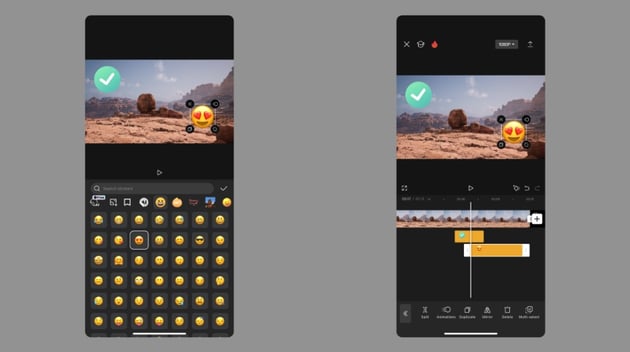
CapCut has thousands of fun stickers you can add to your videos. There are emoji reactions, sparkles, arrows pointing at things, and even animated characters. These are perfect for making your videos more fun and helping show what you want people to look at.
You can also add effects like making your video look like old film, adding a cool blur around the edges, or making everything look super colorful and bright.
Sound Tricks That Make a Big Difference
Background Music
Music makes everything better! CapCut has lots of free music you can use, or you can add your own favorite songs. The trick is making sure the music isn’t too loud. Your voice should always be louder than the background music, or people won’t understand what you’re saying.
Pro tip: Make the music quieter when you’re talking and louder during parts without talking. This is called “ducking,” and it makes your videos sound way more professional.
Sound Effects
Little sound effects can make your videos way more exciting. Add a “whoosh” sound when something moves fast, a “ding” when something important happens, or a funny “boing” sound for comedy. CapCut has tons of these sounds built right in!
My Favorite Quick Tricks
The Zoom Trick
Want to make something dramatic or funny? Add a quick zoom! Tap on your clip, select “Animation,” and choose a zoom effect. This works great when you want to show surprise or emphasize something important.
The Freeze Frame
This is when you make the video stop on one picture for a second. It’s perfect for funny moments or when you want to add text explaining something. Just split your clip where you want to freeze, and use the “Freeze” option.
Picture-in-Picture
This lets you put a small video inside your main video. It’s awesome for reaction videos or when you want to show two things happening at the same time. Gamers use this all the time to show their face in the corner while playing games!
Making Your Videos Look Professional
Keep It Steady
Shaky videos make people dizzy! CapCut has a “Stabilization” feature that makes wobbly videos look smooth. Just turn it on, and your video will look like you used a fancy camera stand.
Good Lighting
This isn’t exactly a CapCut trick, but it’s super important. Film your videos in bright light (but not directly in the sun). If your video looks too dark, CapCut has a brightness tool you can use to fix it a little bit, but it’s always better to start with good lighting.
Color Filters
Filters change how your video looks – like Instagram filters but for videos! You can make your video look warm and sunny, cool and blue, or even black and white. Pick one filter and use it for your whole video so everything matches.
Mistakes to Avoid
Don’t Use Every Effect: Just because you can add sparkles, stickers, transitions, and effects everywhere doesn’t mean you should. Pick a few favorites and use them only when they make sense.
Don’t Make It Too Long: Most people have short attention spans. Try to keep your videos under three minutes unless you’re telling a really interesting story.
Don’t Forget to Save: Save your project often! Nothing’s worse than losing all your hard work because you forgot to save.
Practice Makes Perfect
The secret to getting good at CapCut is simple: practice! Your first few videos might not look perfect, and that’s totally okay. Every professional video editor started as a beginner just like you.
Try making short practice videos about anything – your pet, your favorite toy, a day at the park, or even just random stuff around your house. The more you practice, the faster you’ll get and the better your videos will look.
Start Creating Today when learned about CapCut Made Cool Tricks for Better Videos!
Now you know the secrets to making awesome videos with CapCut! The coolest thing about video editing is that there’s no wrong way to do it. If you think something looks cool, then it probably is cool.
So grab your phone or tablet, download CapCut if you haven’t already, and start creating! Maybe you’ll make funny videos, teach people how to do something, or just capture fun memories with your friends and family.
Remember: every amazing video you see online was made by someone who started exactly where you are right now. The only difference is they kept practicing and trying new things. So what are you waiting for? Your first awesome video is just waiting to be made using CapCut Made Cool Tricks for Better Videos!
Quick Start Challenge: Try making a 30-second video about your favorite hobby using at least three things you learned today. Add some music, use one transition, and put text on the screen. Please share it with your family and watch them be amazed at what you created with CapCut Made Cool Tricks for Better Videos!
Frequently Asked Questions (FAQs)
Is CapCut really free?
Yes! CapCut is 100% free to download and use. You don’t have to pay anything, and it doesn’t put watermarks on your videos. There are some extra fancy effects you can buy if you want, but you don’t need them to make awesome videos.
What devices can I use CapCut on?
You can use CapCut on iPhones, iPads, Android phones, Android tablets, Windows computers, and Mac computers. You can even start editing on your phone and finish on your computer!
How long does it take to learn CapCut?
You can learn the basics in about 30 minutes! Making your first simple video is super easy. Learning all the advanced tricks might take a few weeks of practice, but that’s part of the fun.
Can I use CapCut without internet?
Yes! Once you download the app, you can edit videos without being connected to the internet. However, you’ll need internet to download new effects, stickers, or music from the CapCut library.
Will CapCut slow down my phone?
CapCut uses a fair amount of power when you’re editing, but it won’t hurt your phone. Just make sure you have enough storage space for your videos. If your phone gets warm while editing, that’s normal – just take breaks!
Can I undo mistakes?
Absolutely! There’s an undo button that lets you go back if you mess something up. You can undo as many times as you need, so don’t be afraid to experiment and try new things.
What video size should I use?
It depends on where you’re posting! For TikTok and Instagram Stories, use vertical (9:16). For YouTube, use horizontal (16:9). CapCut lets you choose the right size when you start a new project.
How do I save my video?
When you’re done editing, tap the export button (it usually looks like an arrow pointing up). Choose your quality (1080p is great for most videos), and CapCut will save it to your phone’s camera roll or gallery.
Can I edit videos I didn’t record myself?
Yes, but be careful! If you use someone else’s video, make sure you have permission. It’s always best to use videos you recorded yourself or videos that say they’re free to use.
Why is my video blurry after exporting?
This usually happens if you export at a low quality setting. When exporting, choose “1080p” or higher for the best quality. Also, if your original video was blurry when you recorded it, CapCut can’t fix that completely.
How do I make my text easier to read?
Add a colored background or outline to your text! In the text settings, you can add a background box or stroke (outline) that makes your words stand out against any background.
Can I work on multiple projects at once?
Yes! CapCut saves all your projects in the “Drafts” section. You can have as many projects going as you want and switch between them anytime.
Start Creating Today!
Now you know the secrets to making awesome videos with CapCut! The coolest thing about video editing is that there’s no wrong way to do it. If you think something looks cool, then it probably is cool.
So grab your phone or tablet, download CapCut if you haven’t already, and start creating! Maybe you’ll make funny videos, teach people how to do something, or just capture fun memories with your friends and family.
Remember: every amazing video you see online was made by someone who started exactly where you are right now. The only difference is they kept practicing and trying new things. So what are you waiting for? Your first awesome video is just waiting to be made!
Quick Start Challenge: Try making a 30-second video about your favorite hobby using at least three things you learned today. Add some music, use one transition, and put text on the screen. Please share it with your family and watch them be amazed at what you created with CapCut Made Cool Tricks for Better Videos!
Happy editing! 🎬✨
Add a Comment