
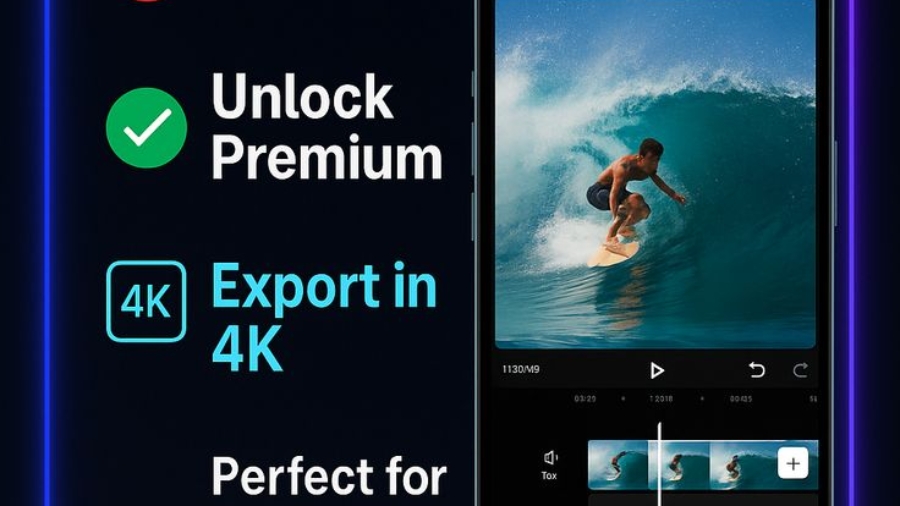
CapCut on iPhone is popular because it allows users to export videos quickly for TikTok, Instagram, and YouTube. But many creators still wonder how good the CapCut iOS Export Quality really is and whether it matches professional standards.
In simple terms CapCut iOS Export Quality, CapCut can export high-quality videos on iOS, but the final result depends on your device, settings, and source footage.
Export Resolution Options on iPhone
CapCut iOS usually offers several export options depending on your device and video project. Common choices include:
- 720p (low quality, small file size)
- 1080p Full HD (standard for social media)
- 2K (on supported devices)
- 4K Ultra HD (on newer iPhones with strong hardware)
However, not every iPhone shows 4K or 2K options. This depends on:
- Your iPhone model
- iOS version
- Original video quality
- App version of CapCut
If your source video is only 1080p, exporting in 4K will not magically improve clarity—it will only increase file size.
Real Quality: Is It Truly 4K or 1080p?
CapCut can export in 4K on supported iPhones, but the “real-world” quality often depends on bitrate and compression.
Even when you select 4K:
- The video may still be compressed for social media
- Some detail loss can happen during rendering
- Platform uploads (TikTok, Instagram) may reduce quality again
This means the final uploaded video may not look like true cinematic 4K, even if exported that way.
What Affects Export Quality Most
Several factors control how good your exported video looks:
1. Original Footage Quality
CapCut cannot improve low-quality videos. If your clip is blurry or 720p, export will still look soft.
2. Bitrate Settings
Higher bitrate = better clarity
Lower bitrate = more compression and blur
Many users notice quality drops when bitrate is too low.
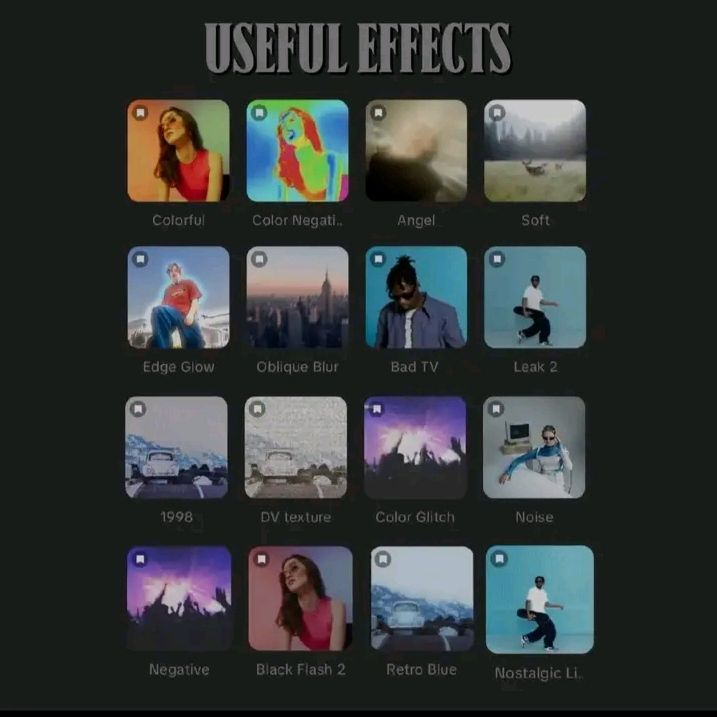
3. Effects and Filters
Heavy filters, transitions, and AI effects can slightly reduce sharpness.
4. Device Performance
Older iPhones may struggle with smooth 4K rendering, leading to minor quality loss or compression.
Common Export Issues on iOS
Some users report issues like:
- Slight blurriness after export
- Loss of sharpness in transitions
- Reduced frame smoothness in high-FPS videos
- Video looking different after uploading to social media
These issues usually come from compression or platform optimization, not CapCut alone.
Also, exporting in 4K requires strong device memory and storage. Low storage can affect export stability and quality.
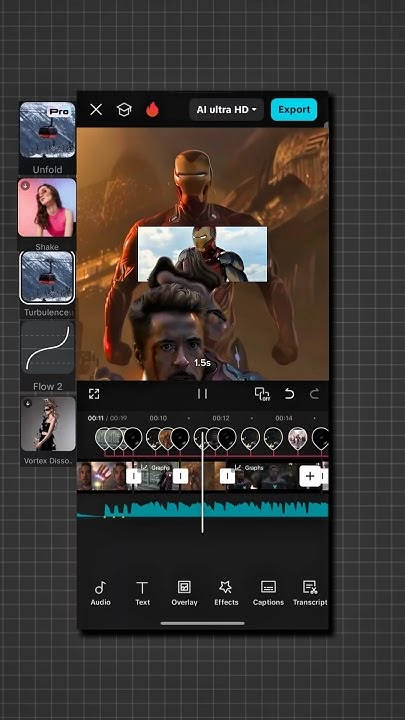
Best Settings for High-Quality Export
If you want the best possible result on iPhone, follow these settings:
- Resolution: 1080p or 4K (if available)
- Frame rate: 30fps or 60fps
- Bitrate: High
- Use original high-resolution footage
- Avoid unnecessary filters or heavy effects
For most creators, 1080p at high bitrate is already enough for Instagram and TikTok without noticeable quality loss.
Conclusion
CapCut iOS provides very good export quality for a mobile editor. It supports up to 4K on compatible devices, but real output quality depends more on bitrate, source footage, and platform compression than just resolution.
In short:
- Great for social media content
- Very good 1080p quality
- 4K available but not always “true cinematic 4K” after compression
- Best results come from proper settings, not just resolution choice
If used correctly, CapCut can deliver clean, sharp, and professional-looking videos directly from your iPhone.
Add a Comment